
Seeed Studio
Boost Your SenseCAP Solar P1 Signal
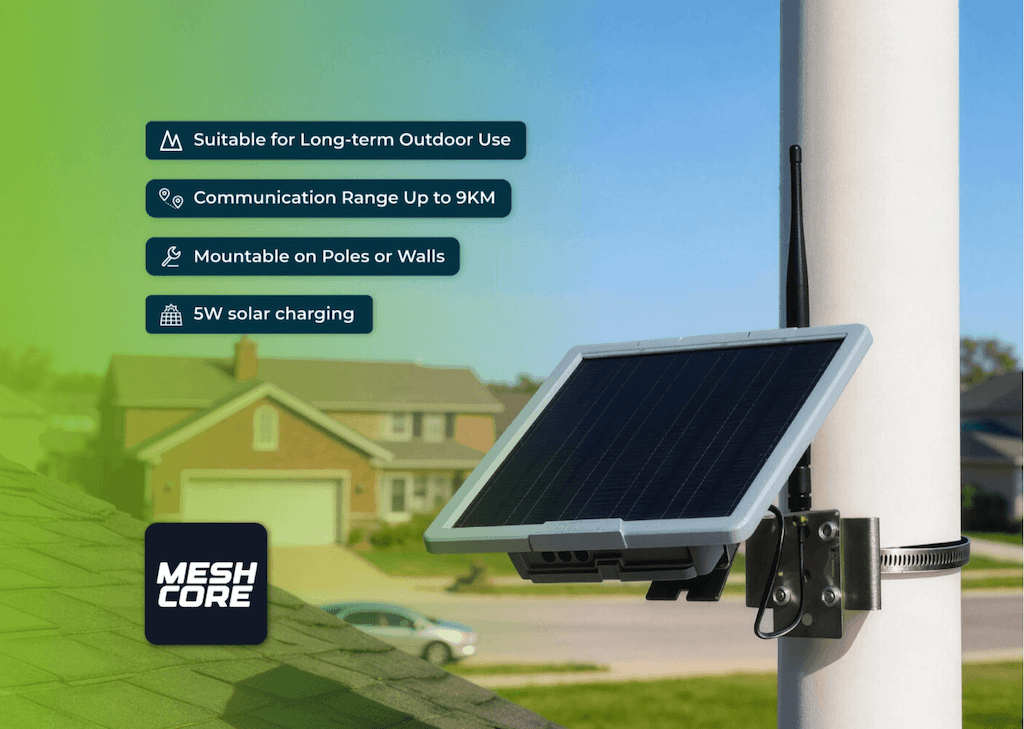
The Solar Node P1-Pro is a powerful off-grid repeater solution that can usually meet all your needs for reliable LoRa mesh network coverage. You can also swap in antennas with the corresponding gain to further boost its performance.
This guide will walk you through, step by step on how to improve antenna performance and how to verify that your Solar Node P1-Pro is working properly.
How to improve results
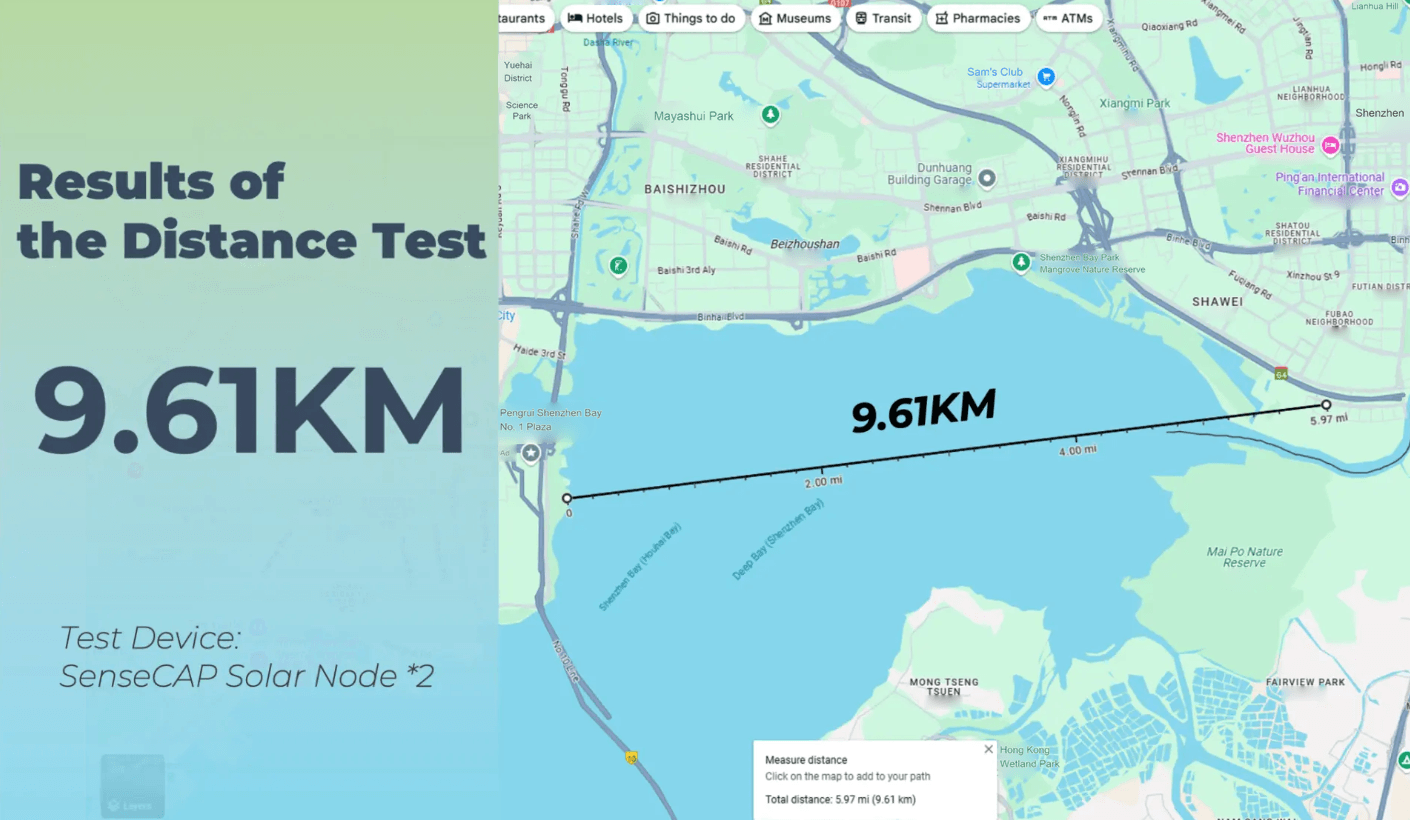
The antenna that comes with the Solar Node P1-Pro is already specifically matched for the device. In our tests, it can reach around 9 km in an open environment with a clear line of sight.
Before replacing the antenna, there are several simpler ways to improve the actual communication range.
Choose a more open location
LoRa performs best when there are fewer obstacles between nodes. Buildings, hills, dense trees, and metal structures can all weaken the signal.
If possible, install the P1-Pro in an open area and avoid placing it behind walls, inside metal enclosures, or very close to large metal objects.
Install the node higher
Installation height also has a large impact on coverage.
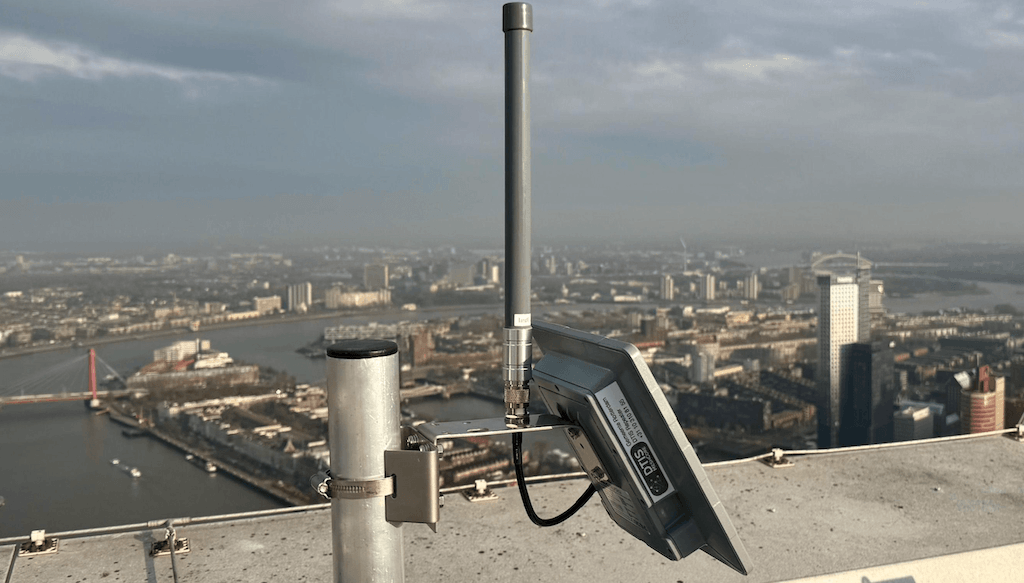
Mounting the P1-Pro on a rooftop, pole, balcony, or another elevated position can reduce obstruction from nearby buildings and terrain and give the antenna a clearer path to other nodes.
In some environments, simply moving the node a few meters higher can noticeably improve the link.
Keep a clear line of sight
For longer-distance links, try to keep the path between nodes as clear as possible.
A location may look close on the map, but hills, buildings, or dense vegetation between two nodes can still significantly reduce the usable distance.
When testing the maximum range, it is better to start with two locations that have good line of sight.
Pay attention to antenna placement
Keep the antenna vertical during normal deployment, especially when the antennas on the other nodes are also vertically polarized.
Avoid placing the antenna directly against metal surfaces or very close to large metal structures.
Sometimes even a small change in mounting position can improve the signal.
Upgrade the antenna for additional coverage
If the deployment position has already been optimized and you still want to improve coverage further, then upgrading the antenna is the next option.
A fiberglass antenna with suitable gain can provide better performance for fixed outdoor repeater deployments. In this case, you will also need to change the antenna connection to N-type and protect the exposed RF cable for long-term outdoor use.
Prepare in advance
-
Cable harness sheath or UV protective tubing, used to protect external SMA cables.
-
RP-SMA to N-type adapter, used for connecting high-performance antennas.
Hardware upgrade
Install as shown in the picture
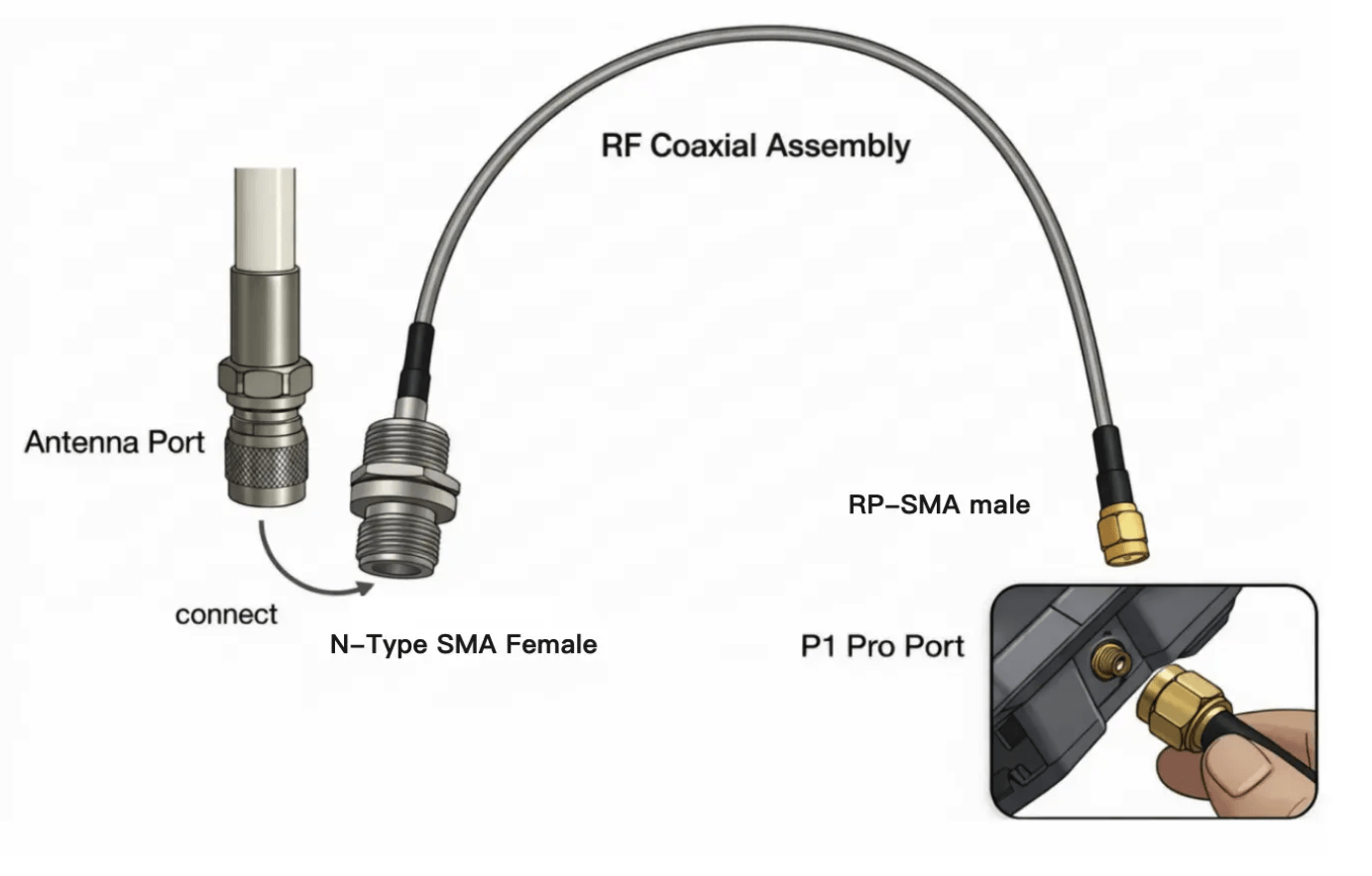
The included bracket also has corresponding mounting positions for the fiberglass antenna.
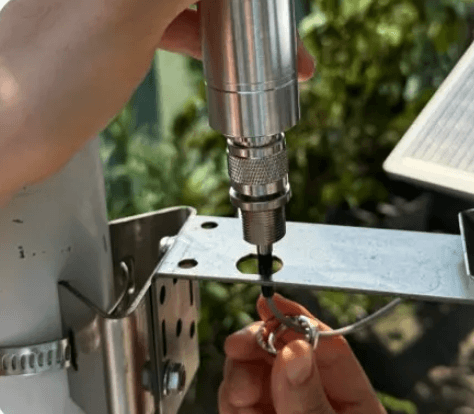
When disassembling or handling SMA connectors, make sure to turn off the node power first. Also, check the connector orientation before applying force. When tightening the adapter, ensure the connector fits snugly. A loose RF connector can reduce performance.
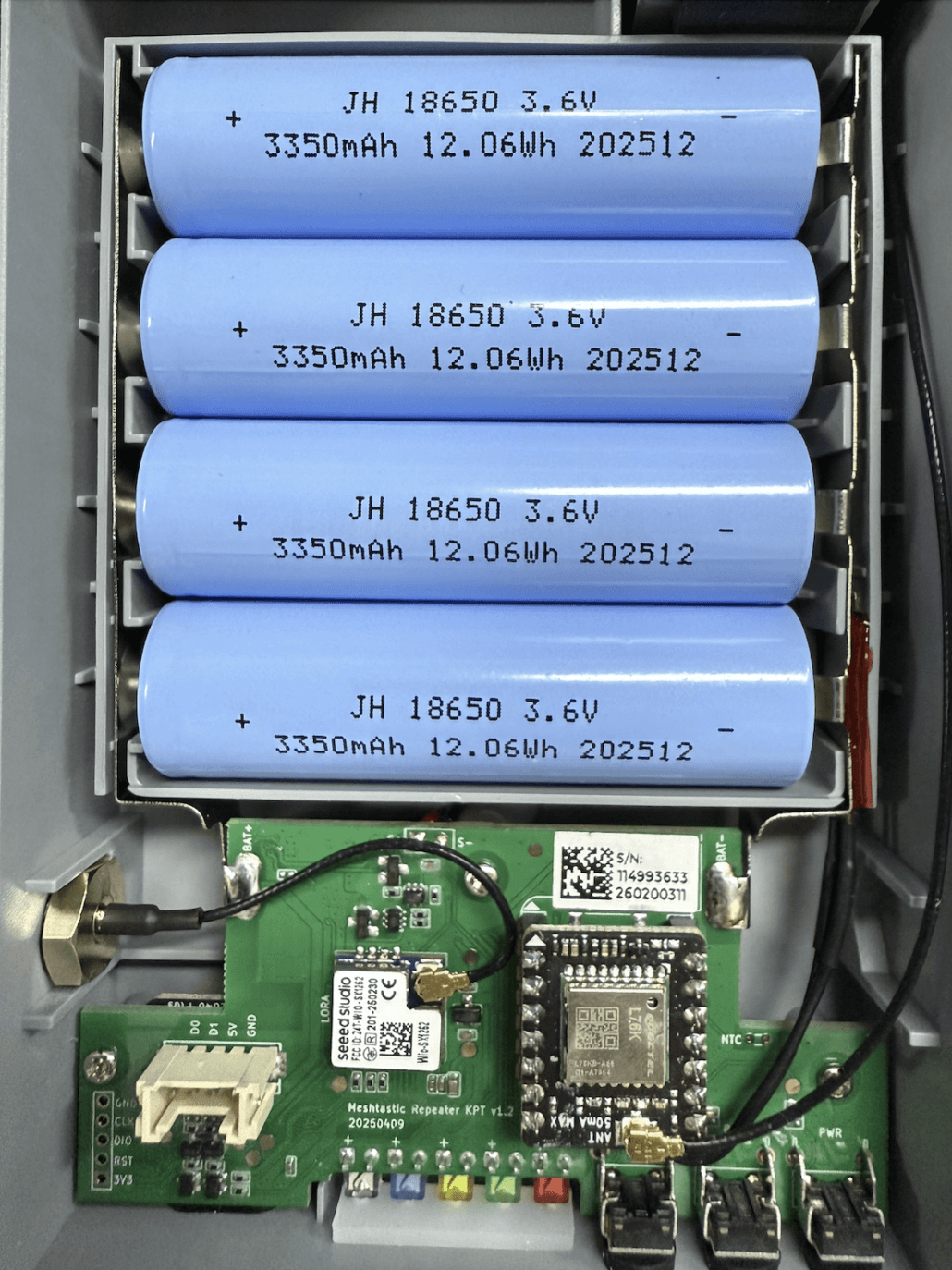
The internal structure of the Solar Node P1-Pro
Update the Solar Node P1-Pro firmware
You can easily update the firmware using the MeshCore Flasher, and following the steps below:
- Connect the SenseCAP to your PC using the USB-C port.
- Open the MeshCore Flasher website and select the SenseCAP Solar SenseCAP device entry.
- Enter DFU mode and mount the device as a removable drive.
- Choose the latest MeshCore firmware version and flash it.
- After the firmware update is done, connect to the device via USB and use config.meshcore.io to set up the location, radio region, admin/guest passwords, and power settings.
NOTE: Flashing the repeater firmware will disable the Bluetooth function on the node. MeshCore repeaters can be configured via a USB connection on config.meshcore.io or via the remote management tool in the MeshCore App. Please select the correct radio region (e.g., US/Canada 915 MHz) and set the transmit power and coding rate according to local regulations.
Pairing and managing with the MeshCore mobile app
After the repeater completes firmware updates and configuration, and the companion device has Bluetooth enabled, the companion device can discover the repeater through short-range broadcasting. This broadcast is sent when the repeater node powers on or when you press the user button.
You can log in to the app as a guest or an admin (if you set an admin password during USB setup). Guest access gives you telemetry data and basic tools. Admin access unlocks the command line and all settings.
MeshCore Repeater Transmission and Forwarding Verification
This method mainly checks three things:
-
Can the repeater receive packets?
-
Can the repeater send packets normally?
-
Does the repeater actually forward data?
Check the basic settings
Connect the Repeater via USB serial port and execute:
ver
board
get radio
get tx
get repeat
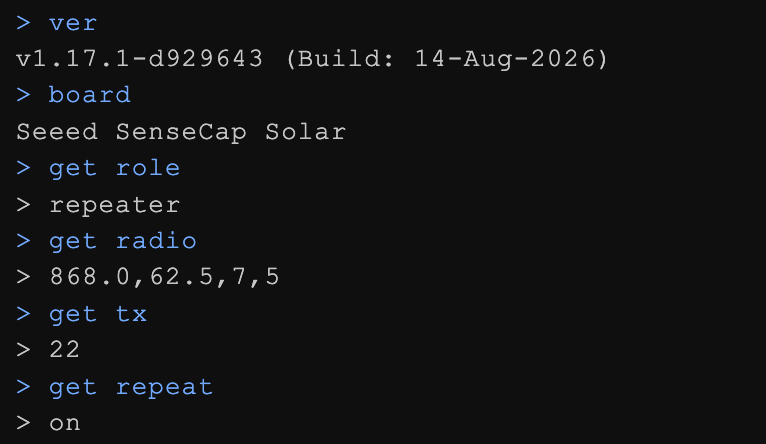
Key point to check:
get repeat
Return:
on
At the same time, make sure the Frequency, Bandwidth, SF, and CR of the Repeater and Companion are completely the same. If the device supports it, you can also check:
get radio.rxgain
It is usually:
on
Test the Repeater RX
First, clear the stats:
clear stats
stats-radio
stats-packets
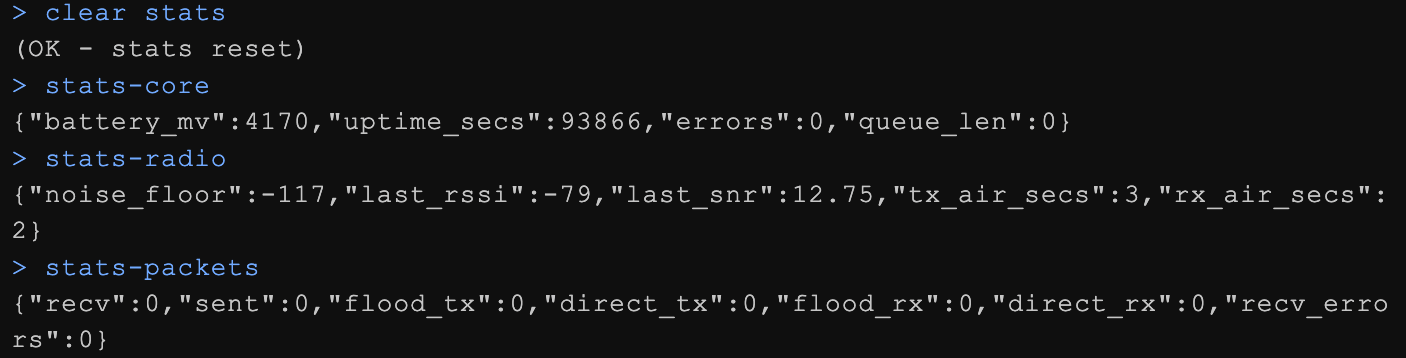
Then have the nearby Companion send 3–5 Channel messages in a row. Take another look:
stats-radio
stats-packets

Focus on:
recv
flood_rx
rx_air_secs
last_rssi
last_snr
recv_errors
If:
recv ↑
flood_rx ↑
rx_air_secs ↑
Indicates that the repeater has been properly receiving LoRa data. If these values don’t change at all after sending many packets, check the following first:
-
Radio parameters
-
Antenna
-
RX Gain
-
SX1262 / RF front end
Verify Repeater TX
Execute:
clear stats
advert.zerohop
Then check:
stats-radio
stats-packets
Normally, you should see:
sent ↑
tx_air_secs ↑
At the same time, nearby companions should be able to receive the repeater’s advertisement. If the stats show it’s been sent but nearby devices aren’t getting it at all, then focus on checking:
-
PA / FEM
-
RF Switch
-
Antenna
-
Transmission Frequency
-
TX Power
Check if the Repeater is actually forwarding
Enable Packet Log:
clear stats
log erase
log start
Then have Companion A send a few messages.
Execute after the test is completed:
log stop
log
stats-packets
Focus on whether the logs have:
RX ...
TX ...
If both RX and subsequent TX appear at the same time during the same test, it means the Repeater forwarded the data after receiving it. If you see:
RX ...
TX FAIL!
The reception is fine, but it fails during the sending stage.
Note:
RX quantity ≠ TX quantity
This is normal. MeshCore won’t resend every packet it receives; duplicate packets, hop limits, loop detection, and other conditions can prevent forwarding.
Recommended Test Commands
When actually checking, you can just run this set below:
ver
board
get radio
get tx
get repeat

clear stats
log erase
log start

stats-radio
stats-packets
Have the Companion send 3–5 packets, then:
stats-radio
stats-packets

log stop
log
Final test of active TX:
advert.zerohop
stats-radio
stats-packets
Final judgment criteria
The most important things to look at are these four points:
1. flood_rx / recv increases
2. RX appears in the log
3. TX appears in the log, and flood_tx / sent increases
4. The second Companion actually receives the message
If all four items are met, you can consider the repeater’s RX, TX, and forwarding functions to be working fine.
FAQ
Why can’t my P1-Pro reach 9 km?
The 9 km result was measured in an open environment with good line of sight. It should not be treated as a guaranteed communication distance.
Buildings, hills, trees, installation height, antenna position, interference, and even the location of the node can all affect the actual range.
If the range is much shorter than expected, we recommend testing again in an open area first before replacing any hardware.
Does installing the P1-Pro higher improve the range?
Usually, yes.
For long distance LoRa communication, reducing obstacles is very important. Installing the node on a rooftop, pole, hill, or other elevated location can often improve coverage significantly.
In many cases, changing the installation position can make a bigger difference than simply replacing the antenna.
Can I use a higher-gain antenna?
Yes, as long as the antenna supports the correct LoRa frequency band and uses the correct connector.
However, a higher antenna gain does not automatically mean a longer communication distance. Installation height, line of sight, cable loss, and the surrounding environment still matter.
Also make sure your final RF configuration complies with the transmit power and antenna regulations in your region.
Why did the signal become worse after replacing the antenna?
First check the antenna frequency, connector type, adapter, and RF cable.
A long or poor-quality coaxial cable can introduce additional loss. Loose connectors can also reduce RF performance.
If possible, compare the original antenna and the new antenna at exactly the same location and orientation.
Should the antenna be installed vertically?
For most normal deployments, yes.
If the other nodes also use vertically mounted antennas, keeping the P1-Pro antenna vertical usually gives more consistent results.
Avoid placing the antenna directly against metal surfaces or very close to large metal structures.
How can I quickly check whether the repeater is transmitting?
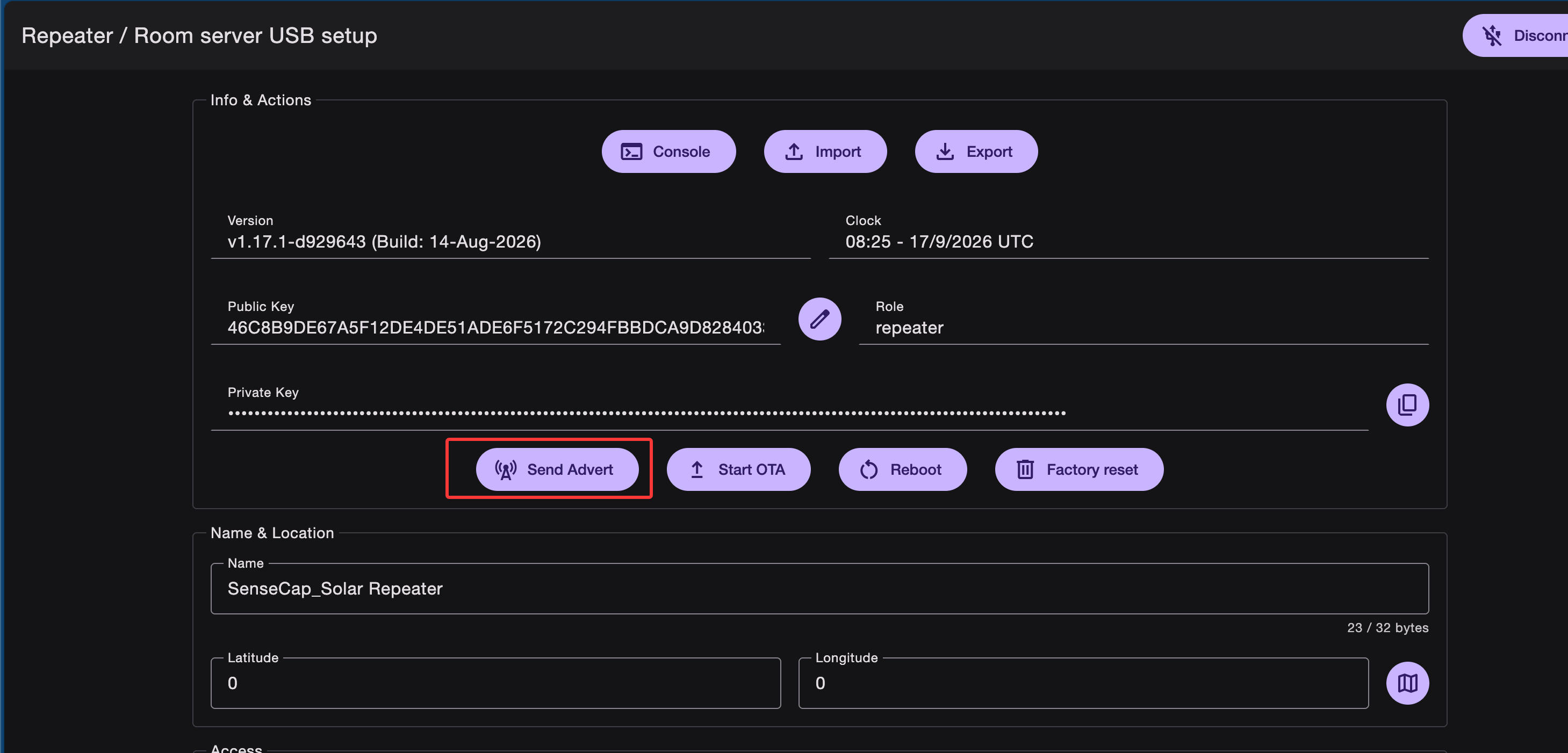
In MeshCore, you can manually use Send Advert.
This forces the Solar Node to transmit a LoRa packet. You should then see the corresponding TX LED flash briefly and other nearby MeshCore devices should be able to receive the advert.
The TX LED does not flash when another node sends a message. Is the repeater broken?
Not necessarily.
The TX LED only indicates that the Solar Node itself is transmitting LoRa data. It is not an RX indicator.
A MeshCore repeater also does not retransmit every packet it receives. If the Solar Node receives a packet but does not need to forward or reply to it, there will be no TX and therefore no TX LED flash.
So you should not use the TX LED alone to determine whether the repeater is working properly.
Why can the P1-Pro receive distant nodes but other nodes cannot hear it?
This usually means the uplink and downlink conditions are not the same.
First check the antenna and RF connector, then test with the original antenna in an open location. Also check whether the correct LoRa region is configured and whether the device is actually transmitting.
Testing two devices at a known distance and then gradually increasing the distance is usually easier than troubleshooting directly in a large mesh network.
Does adding another repeater always improve coverage?
Not always.
A repeater is most useful when it is placed somewhere that can communicate well with both sides of the network.
Adding another repeater in a poor location may not improve the link very much. In most cases, one well-positioned repeater on a high and open location is more useful than several repeaters placed behind buildings or terrain.
Can I install the P1-Pro inside a box?
The P1-Pro itself is designed for outdoor deployment, so normally there is no need to place the whole unit inside another enclosure.
If you do use an additional enclosure, avoid metal enclosures around the LoRa antenna. Metal can significantly affect RF performance.
If an external antenna is used, place the antenna outside the enclosure.