
Scott Powell
Ripple v9.4 for HeltecV4
I’ve now added map tiles support for the Heltec V4 Expansion Kit.
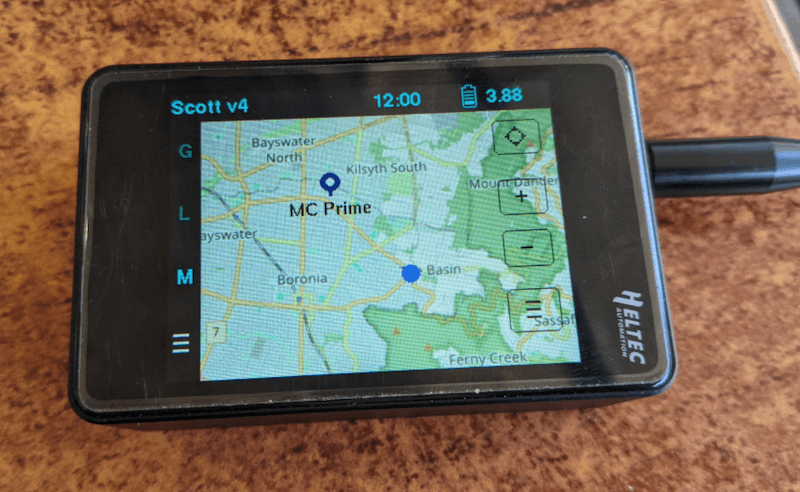
Download
You can download + flash in one easy step using this direct link to the MeshCore Flasher target.
NOTE: there are two firmware variants now; one for existing uses who don’t want map tiles support, and a new ‘LittleFS’ variant for map tiles support.
WARNING: The LittleFS variant uses a different flash storage partition scheme, and you will lose all your settings if you switch to this one. However, once on this variant it’s safe to do future upgrades and not lose settings.
General Guide
The Heltecv4 has a UI which mostly like the other Ultra devices, like the T-Deck, so refer to the general user guide here for details.
The ‘LittleFS’ Firmware
This new variant, it carves out a LittleFS partition about 14Mb in size. So, you can drop map tiles up to about that size. This is fairly limited, but you should be able to drop some subset of your local geography for a few zoom levels.
Please see the FAQ about how to get map tiles.
Copying Files to LittleFS
There is a handy online tool called ESPConnect which makes it easy to connect the HeltecV4 via USB to your computer, then add/modify/delete the files in the LittleFS partition.
Just click on the CONNECT button at the top, select the port for your USB connection, then click on the LittleFS Tools tab:
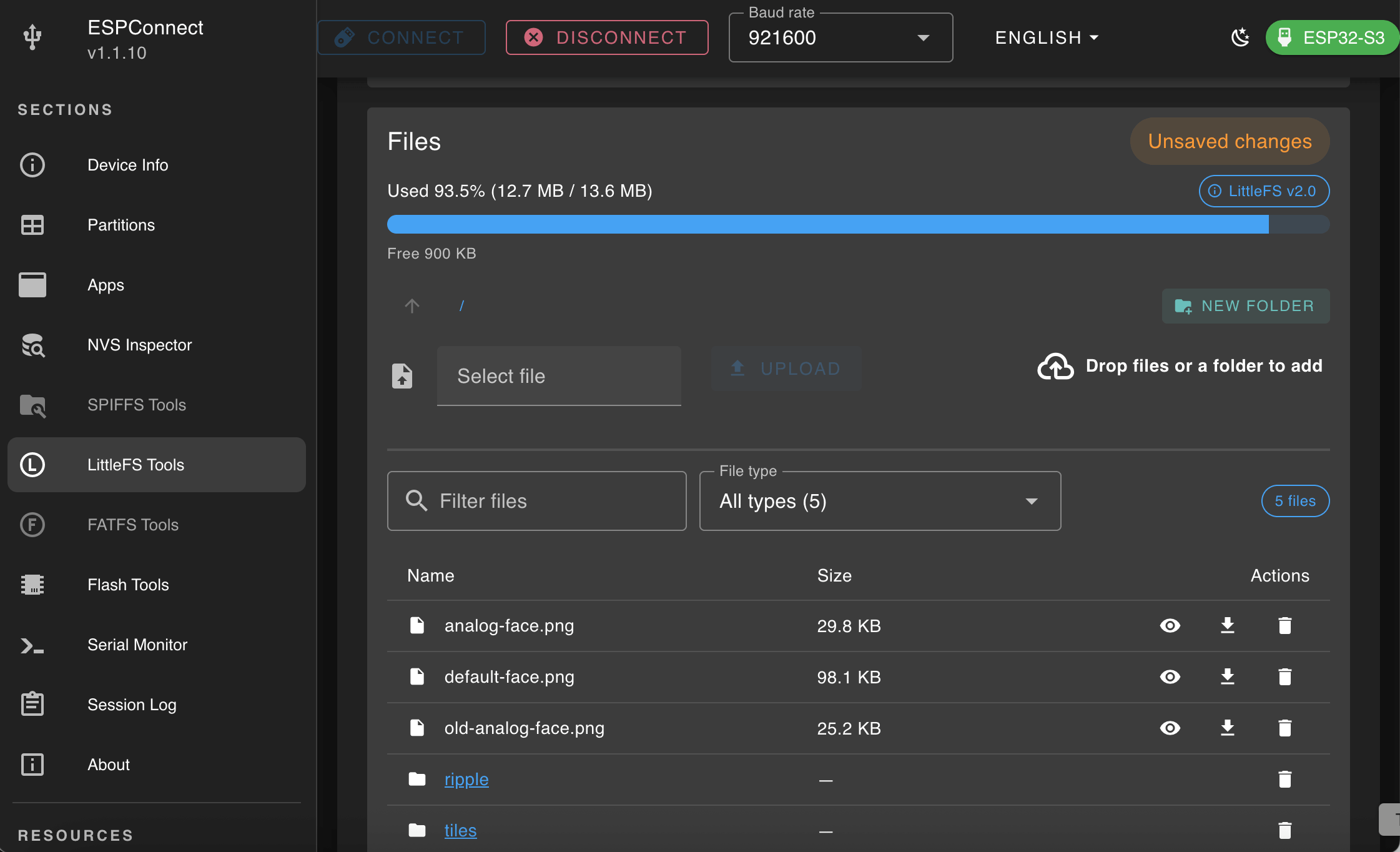
You’ll need to be patient while it does a full read of the partition, but once done, it will ask you to click BACKUP (which is very handy), that saves the entire partition to a .bin file.
If you look below, you should then see the various files/folders in the file system. For the map tiles, just drag/drop the whole ‘tiles’ folder you have prepared on your computer. NOTE: you will see this warning if you’ve blown the size limit:

You should see the orange warning Unsaved changes after adding/removing files/folder, and once you have made all the changes need, just click the blue SAVE TO FLASH button:
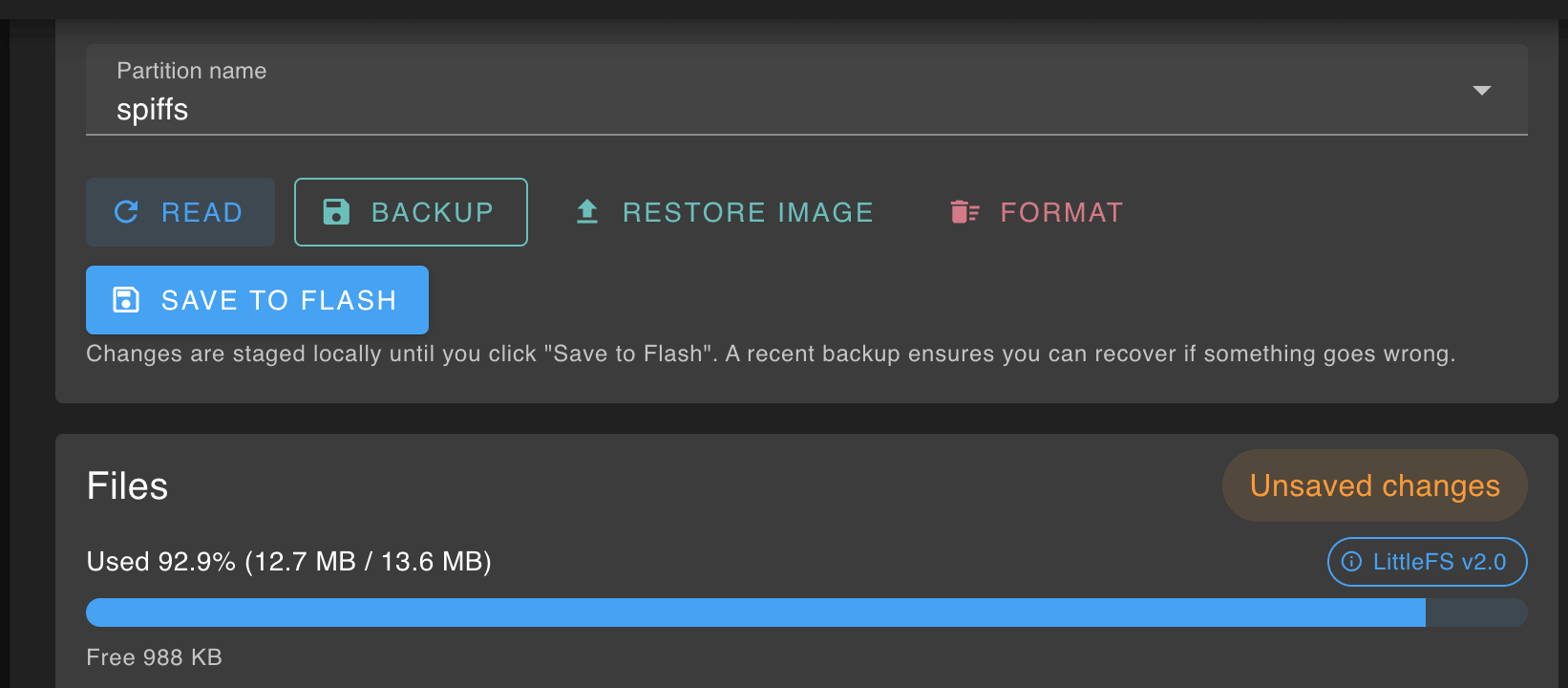
Again, you’ll need to be patient as it writes the entire partition back to the device. But, once it’s done just disconnect the device, then press the Reset button on the device.