
Rastislav Vysoky (recrof)
The MeshCore Map
Origins
When MeshCore launched at the start of 2025, discoverability was a pretty big issue - that’s where the idea for the MeshCore internet map was born. Liam Cottle’s Meshtastic Map was the primary inspiration. The first version was released in April 2025 and the first nodes from the UK, Australia and Slovakia started to flow in. The number of nodes grew rapidly - we had the first 1,000 nodes within a month, crossed the 5,000 mark in summer, 10k in December and now we’re at 30k nodes worldwide.
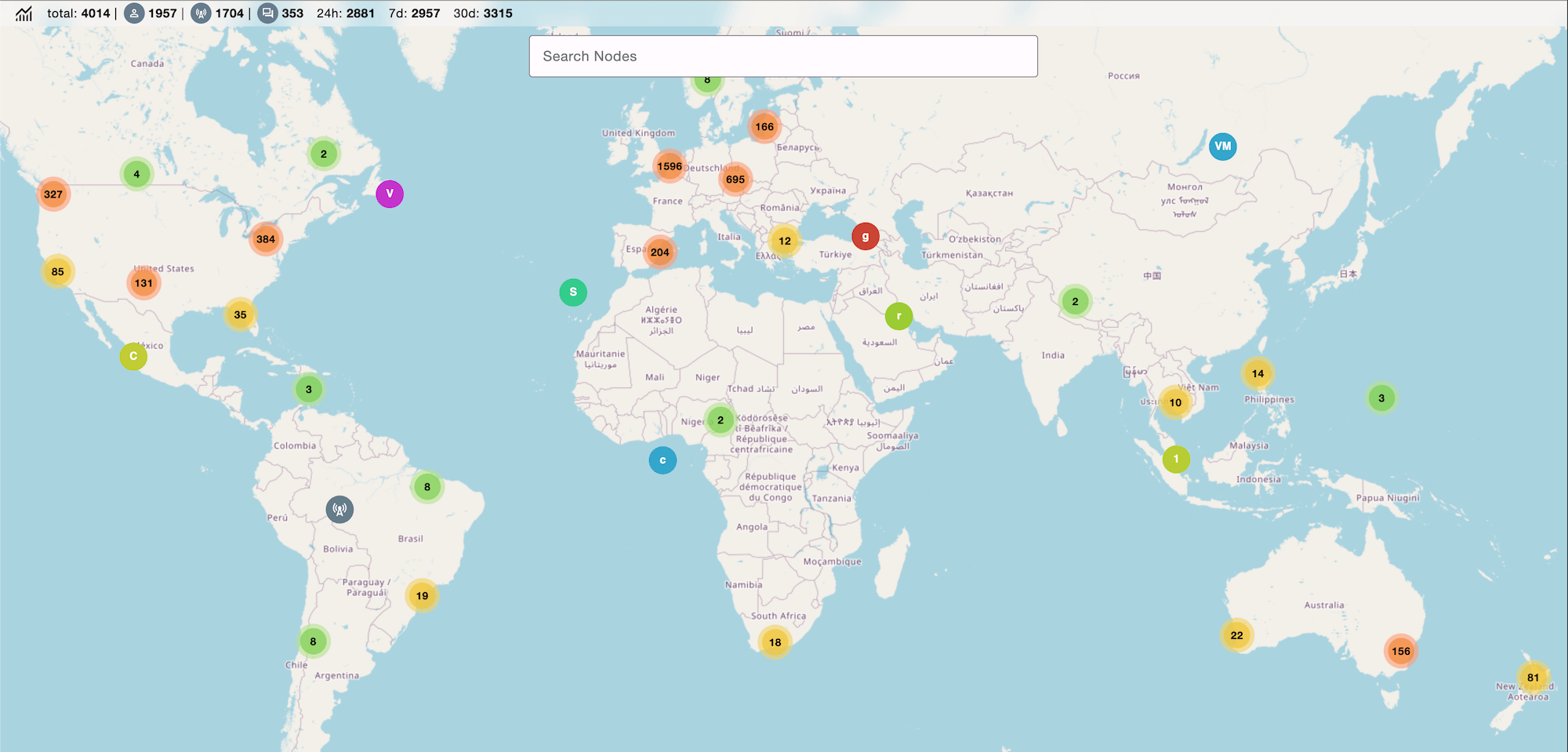 This is how the map looked in May 2025
Basic concepts
The map was created mainly to reference infrastructure nodes, so you know exactly where other repeaters are and what radio settings they use. This was later extended to node statistics, search, filtering and basic health monitoring of the mesh.
Notable Features
Apart from the obvious map browsing and node search, there is a powerful filter that can be very useful for finding specific nodes.
- Search in current map view only - useful when you’re looking for a specific node or public key prefix in your area
- Only show duplicates - shows only names that appear more than once on the map, good for map cleanup
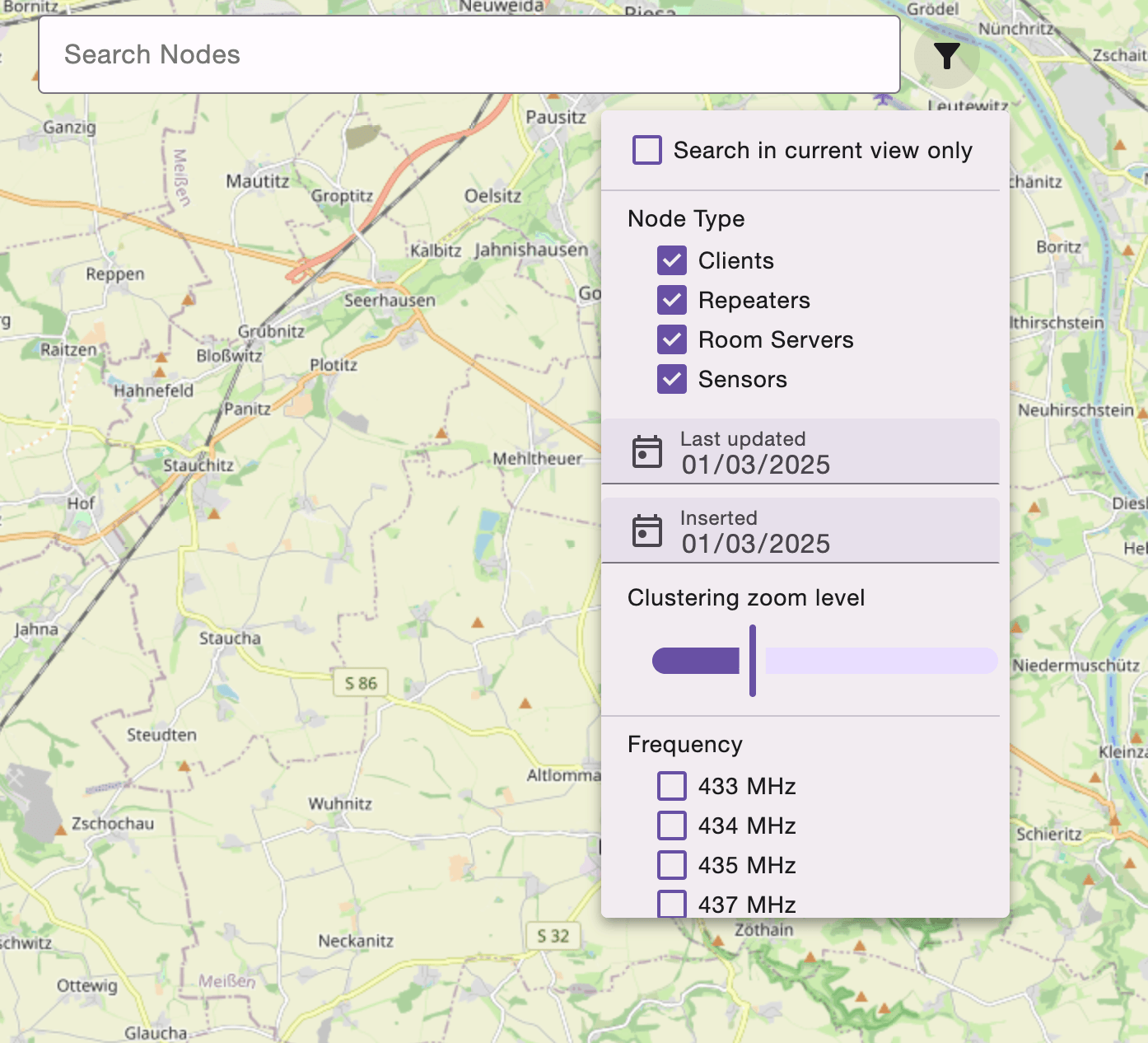 The filter menu opens when you click on the filter icon
Node freshness
Nodes updated by MeshCore Map Auto Uploader are color coded, so you know which Repeater / Room Server / Sensor was recently heard:
| Color | Status | Meaning |
|---|---|---|
| Green | Recent | Updated within the last 5 days |
| Yellow | Stale | Updated within the last 10 days |
| Red | Old | Updated within the last 20 days |
| Black | Extinct | Not updated in over 20 days - will be deleted soon |
| No tint | Manual | Added manually, not automatically uploaded |
 Node freshness on the map
Coordinate context menu
Clicking on the coordinates in a node popup opens a small context menu with quick links to open the location in OpenStreetMap, Google Maps or Mapy.com, as well as an option to copy the coordinates to clipboard.
Clustering zoom level
By default, nearby markers are grouped into clusters to keep the map readable. The Clustering zoom level slider in the filter menu controls at what zoom level markers stop clustering and are shown individually. If you’re exploring a dense area and want to see all nodes separately without zooming in all the way, sliding it to a lower value will expand clusters earlier.
QR code
Every node popup shows a QR code that encodes a meshcore://contact/add URL with the node’s name, public key and type. Scanning it with the MeshCore mobile app adds the node directly as a contact - no manual copying of keys needed.
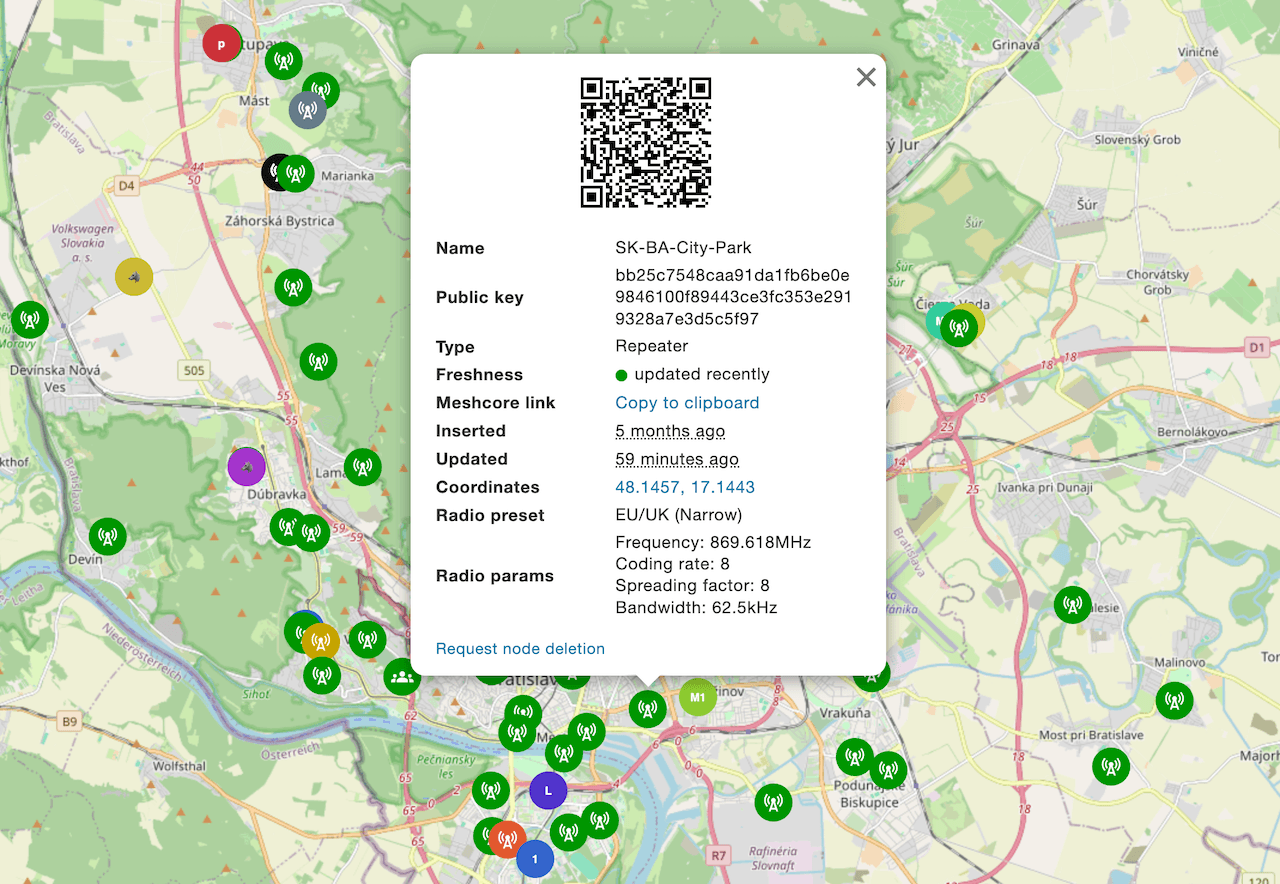 Node popup with QR code and all the details
Shareable URLs
The map remembers your current position and the node you have open. The URL updates as you move around, and when you open a node popup it switches to ?public_key=... format. You can share that URL directly - anyone opening it will be taken straight to that node with the popup open.
You can also use the url in your own regional page using <iframe>, here is an example:
<iframe src="https://map.meshcore.io/?lat=47.8721&lon=12.5903&zoom=8" style="width:100%;aspect-ratio:3/2" frameborder="0" scrolling="no"></iframe>
Adding/Removing nodes
Adding yourself (Companion radio)
- Open MeshCore app
- Tap the ⋮ menu icon in the top right corner
- Tap Internet Map
- Tap ⋮ again and choose Add me to the Map
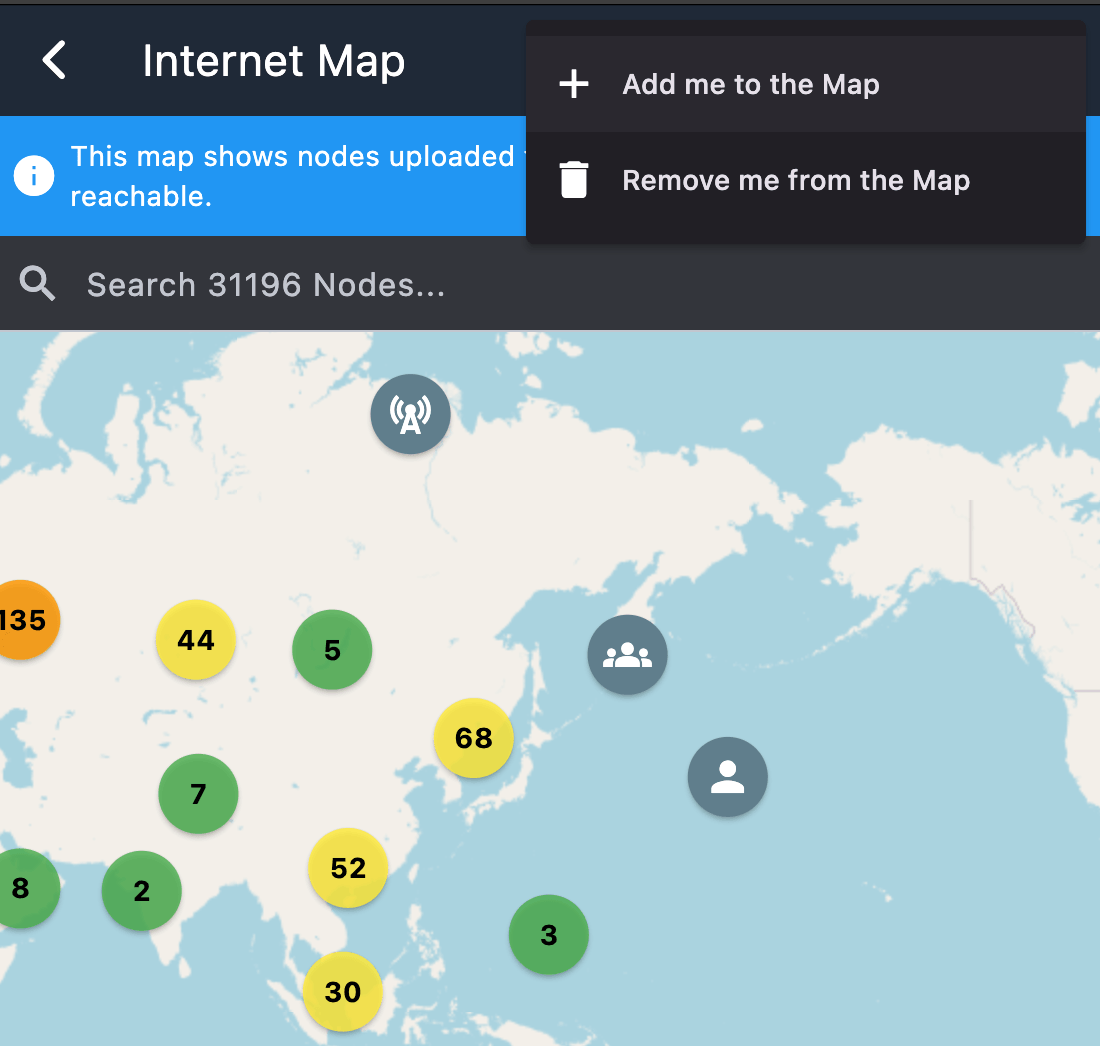 Adding yourself to the map
Adding a Repeater or Room Server
- Open the Contacts tab in the MeshCore app
- Tap ⋮ next to the Repeater or Room Server you want to add
- Tap Share, then Upload to Internet Map
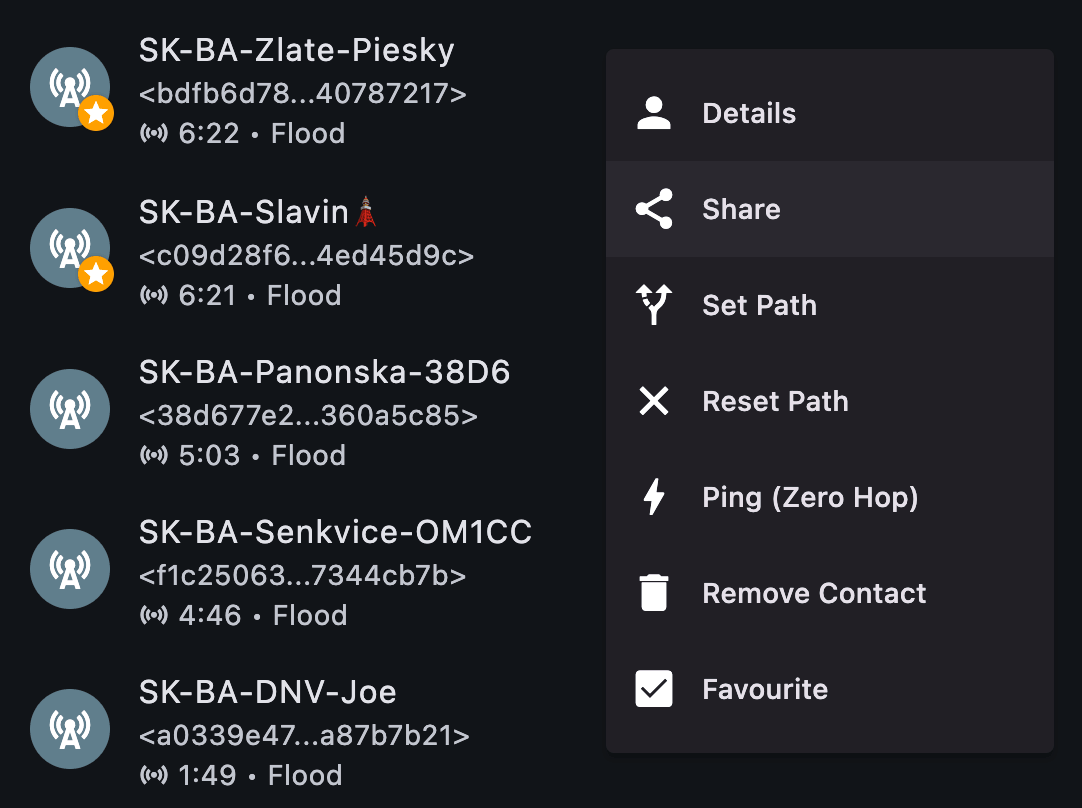 Adding a repeater to the map
Removing a node
Removing can only be done with same Companion radio (same public key) that was used to upload the node.
- Open MeshCore app
- Tap the ⋮ menu icon in the top right corner
- Tap Internet Map
- Find the node you want to delete, tap it and choose Delete Marker
Beyond the interface
MeshCore Map Auto Uploader will let you automatically add and update all repeaters, room servers and sensors when they broadcast an advert. That’s the main reason you can see freshness indicated by the colored node icons.