Scott Powell
OTA Updates on nRF Devices
Updating the firmware of your repeaters or room servers is super easy for nRF-based nodes.
1. Download new .zip
Go to the webflasher and find your device, then select the Repeater or Room Server role, then latest version. In the bottom-right, click the Download button, then select .zip file:
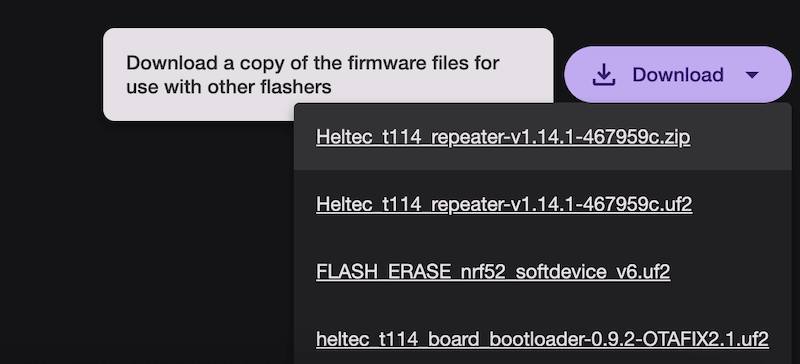
Alternatively, go to the Github releases page, then find the related artifact, eg. the T114 Repeater.
2. Login to repeater/room server
Using the mobile app, login to your device:
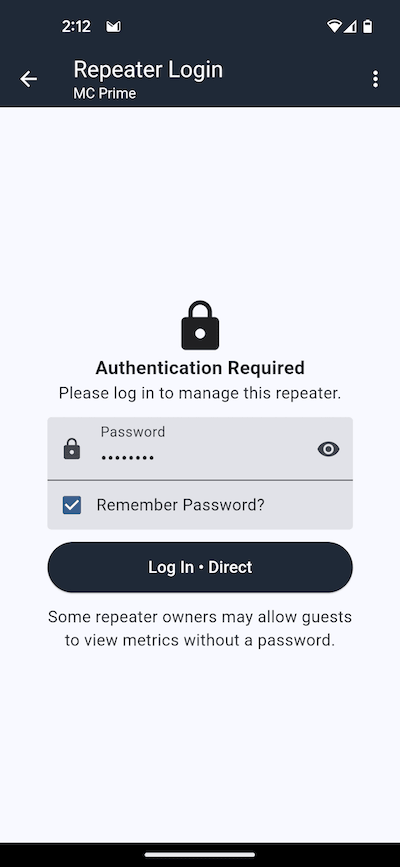
Then switch to the Command Line, and enter start ota command:
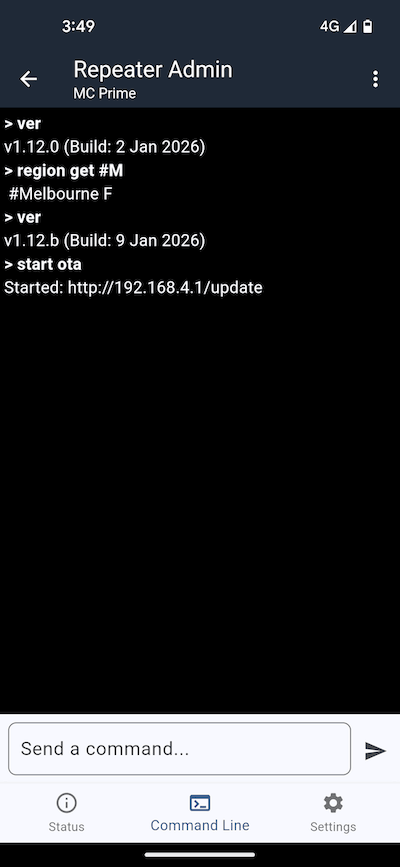
You should then see a reply, like:
OK - mac: FF:AA:BB ...
Alternatively, you can use a standalone device like the T-Deck with the Ripple firmware to enter the start ota command:
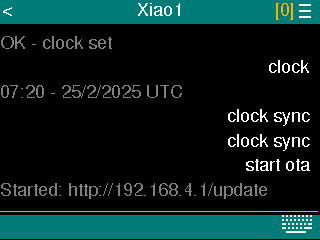
3. Connect with your phone
If you don’t have it installed already, you will need to install the Nordic nRF Device Firmware Update app, which you can find on Google Play and the App Store.
3.1 DFU App Settings
In the app, tap on Settings icon and use these recommended settings changes:
- Packet receipts notification - ON
- Number of packets - 8
- Request high MTU (Android only) - OFF
- Disable resume - ON
- Prepare object delay - 0 ms
- Force scanning - ON
3.2 Start update
In the app, select the .zip file you downloaded and select the Device, Then press the start button:
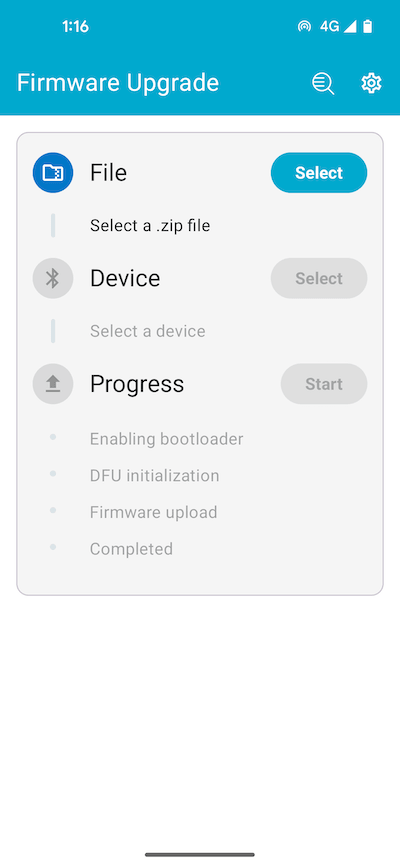
And that’s it!
4. Finishing Up
Once completed, logout then log back in (either with the app or a standalone device), check that the clock is correct with the clock command. If it is incorrect, just issue the clock sync command.
Also, you might want to enter the ver command, to check the firmware version is now updated.
Trouble Shooting
If the update stalled or failed, try issuing this command from phone or standalone device:
reboot
And then try the process again.