Scott Powell
Off-grid (client repeat) Mode
The next version of the Ripple MeshCore firmware will (finally) support off-grid mode, also known as ‘client repeat’ mode. A lot of people have been asking for this one, but it’s something that has needed to be done carefully, as it’s one of the big mistakes Meshtastic made, and we don’t want to repeat that.
One of the clear distinctions of MeshCore, and one of the keys to its scalability, is that clients do not forward packets! But, there are a number of very legitimate use-cases where client devices also acting as repeaters could help, and one of these is when away from public meshes, out in remote (or off-grid) areas.
To help keep these use-cases very much separate, we are still in the process of getting consensus on reserving a range of frequencies just for off-grid (ie. non-public mesh) use. This way, people can’t accidentally leave their radio on and go back into a public mesh and mess with routes.
Note: Liam is also adding this to the mobile app, so you will also be able to use companion radios in this scheme. But, he is likely going to make the UI very different to what I have come up with.
How to Setup
I decided to put the off-grid mode into the new regions feature. There is a concept of a ‘home region’ in the core firmware which currently isn’t used, and I thought this a natural point to hook into. I had also considered some regions could, in the future, have their own custom LoRa radio settings, or even be marked as a special ESP-NOW region (for instance). So, when switching your ‘home region’, it can also switch the radio to different settings.
From the ‘Manage Regions’ screen, when you select ‘New…’ you now get prompted with the region type:
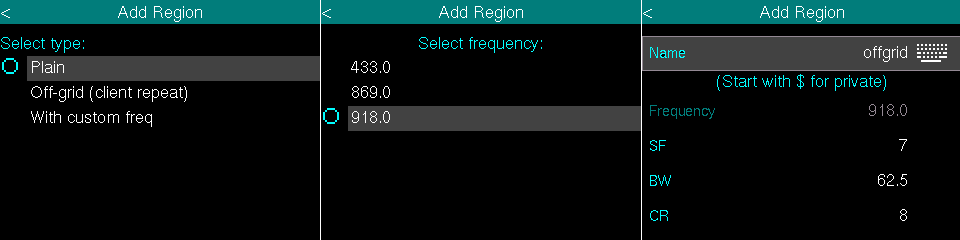
The ‘plain’ regions are the current ones for use with the ‘Set Scope’ feature. The other two types now also let you define custom radio settings, but the ‘Off-grid’ one enables the client repeat mode. Also, the Off-grid type only lets you select from a number of reserved frequencies*, where as the third type lets you specify any frequency (but does not enable client repeat mode).
- These frequencies are still being settled/finalised
Switching Home Region
From the home screen, tapping on the top-left has always been the mechanism to switch network profiles (if you have defined multiple profiles). This has now been extended to also list the defined regions, under the network profile:
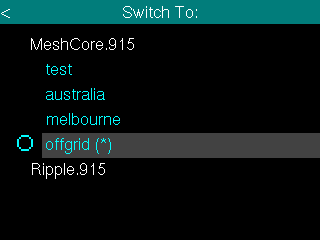
The regions which also have custom radio settings will be marked with (*). Just select the region, and that’s it. Your home region setting is now saved, and the radio is switched to the custom settings.
To go back to the public mesh, just select the network profile (eg. the white ‘MeshCore.915’ above).
T-Pager UI
The UI is slightly different for the T-Pager, with the lack of touch screen. From the Regions list, the current home region is now rendered in orange:
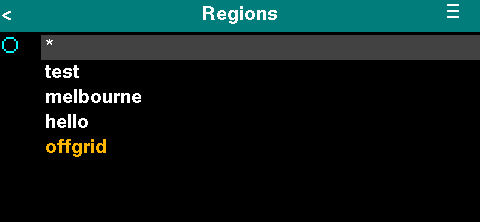
To switch the home region, scroll to then select the region, which navigates to a new Region Details screen:
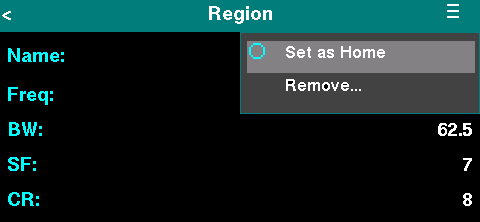
Then select the ‘Set as Home’ menu. To switch back to the public mesh, select the wildcard (*) region, and then Set as Home menu.
Wrap Up
Selecting one of the plain regions as home currently has no effect, but in the future there are optimisations that could be made if the device knows your current region, and the region of a recipient. But, this hasn’t been defined yet.
Hopefully off-grid mode will help MeshCore get adoption in areas like Search And Rescue. Would be great to see it in action in the emergency services.