Scott Powell
Region Filtering
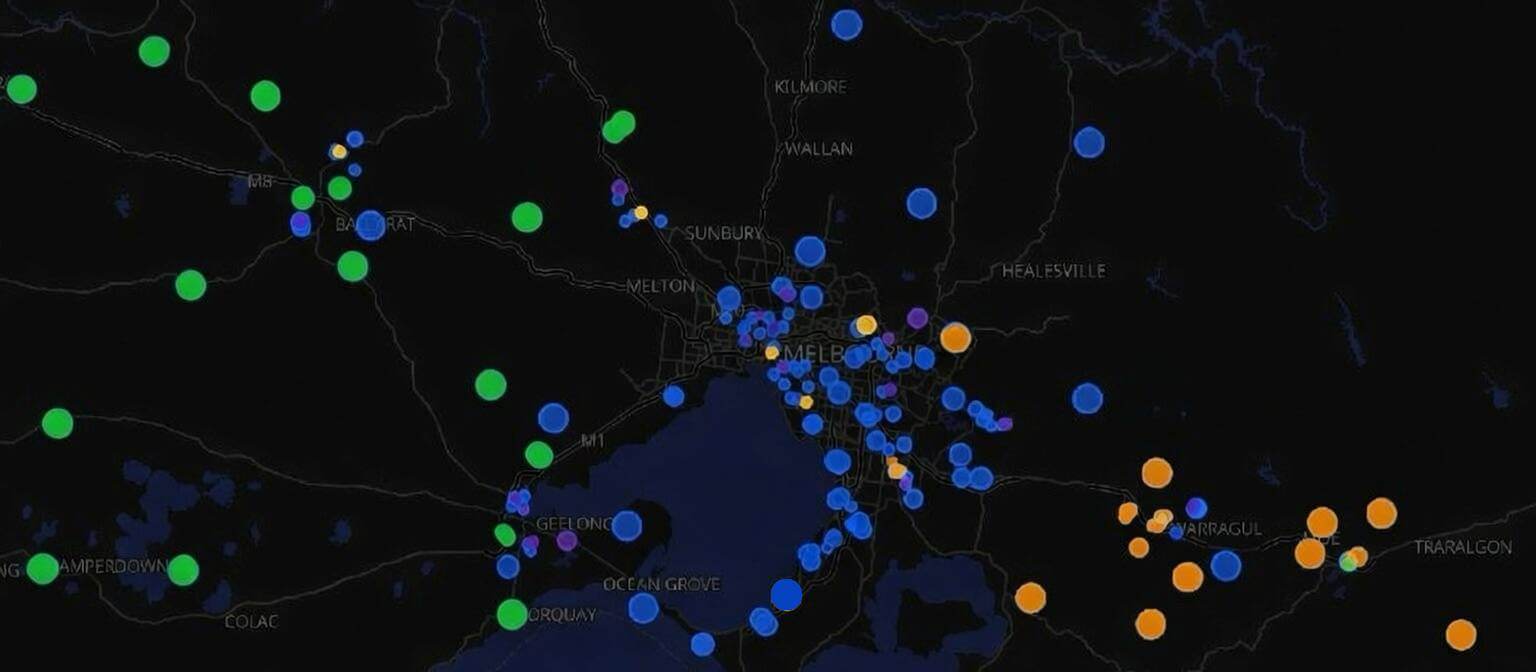
So, the pieces are finally falling into place, and region filtering is now here. There have been a number of critical code changes that preceded this to get the right support in place, like the provision for the transport codes in the packet headers, and more recently with repeater v1.10.0 release to enable region config and the actual filtering logic.
The final piece of the puzzle is getting client device support done, and a nice UI that is (hopefully) easy to use. The Ripple GUI firmware is now ready to go, and now Liam’s app changes are ready.
EDIT: 25 Jan 2026
After some discussions, and that there is some confusion around #channels and #regions, it’s been decided to drop the requirement to have the ‘#’ prefix. So, region names will just be plain alphanumeric (and ‘-‘), with no # prefix.
For backwards compatibility, the names will internally have a ‘#’ prepended, but for all client GUI’s and command lines, you generally won’t see mention of ‘#’ prefixes. The next firmware release (v1.12.0) and subsequent Ripple firmware and Liam’s app will have modified UI to remove the ‘#’ requirement.
EDIT: 20 Feb 2026
Some confusion has arisen over the wildcard ‘*’ region, and I now regret having named it this way. In hindsight it probably should have been called ‘?’ or the null region. In subsequent doco please try to read it that way. It’s the null region.
Ripple GUI
What you will need to do first is define the region names into a new Regions screen (from the network profile menu):
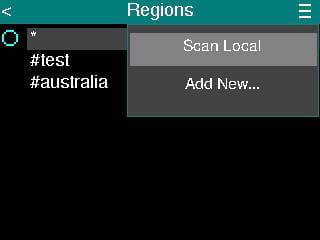
You can do this manually with the Add New menu, but a cool new feature of the repeater v1.12.0 firmware (next release) is support for new request types, and one is to auto-discover regions in your area! To use this, you select the Scan Local menu:
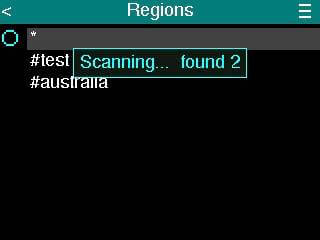
This uses the new Discover request, and any repeaters within reach respond with a list of regions which they are configured to allow. These are then collated, and if any are not in your device’s list, then you are prompted if you wish to add:
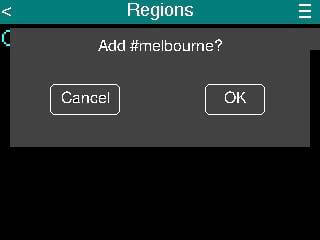
Once you have regions defined, when you go into any of the group channel chat screens, you can use the new Set Scope menu, to select which region you want to limit messages you send. (you can still receive messages from anywhere in the mesh)
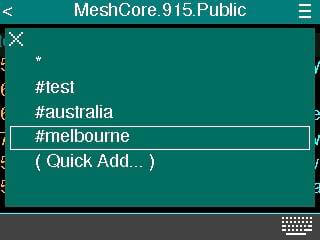
The scope preference is saved per group channel, and you can change it at any time.
Mobile App
Liam has now published v1.38.0 of the MeshCore app, which has a new Set Region Scope menu in the group channel chat screen:
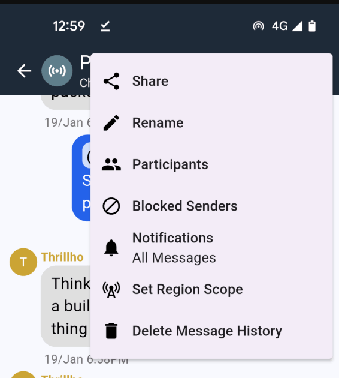
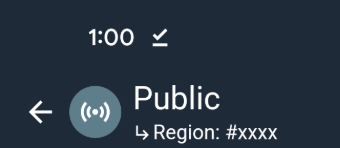
The region selection/management screen should be very straight-forward. Once you have added a region, and selected, the channel chat titlebar changes to show which region your chats will be scoped to:
What Happens Next
So, the first step will just be for repeater admins. This will involve having discussions in whatever forums you chat in (or even over the mesh itself!) and to come to some consensus on how to divide up your geography. The region names must be exact–any misspellings will be treated as a completely different region! There are some rules on the names:
- maximum 29 bytes (UTF-8).
- Only lower case alpha-numeric chars, and - (hyphen)
- For any given mesh, region names must be unique
Each repeater can support multiple regions, so you can have super-regions that are, for example, a whole state, with smaller county sub-regions, for example. The hierarchy of regions can go to any depth you like.
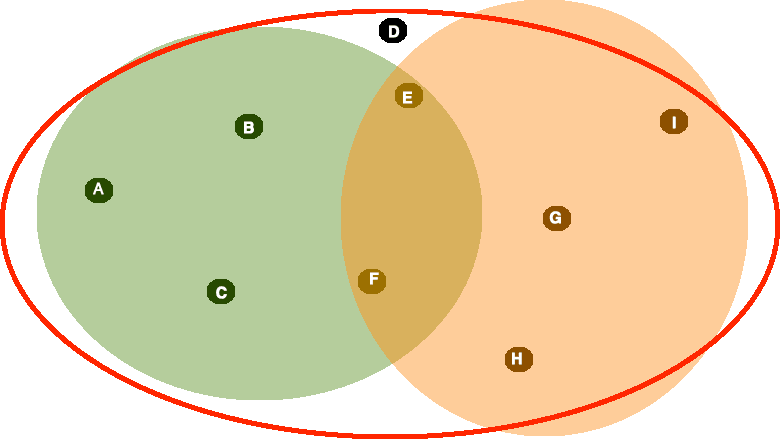
To illustrate, the bigger region in red could be sample-city, and the green sub-region could be sample-west, the orange sub-region sample-east. Repeater admins would then need to add different region names to each repeater’s config. (This can be done remotely)
For boundary areas, like in the middle, it’s reasonable to include both regions. So, repeaters E and F would configure: sample-city, sample-east, sample-west.
Repeaters A, B and C would configure: sample-city, sample-west
Repeaters I, G and H would configure: sample-city, sample-east
And the outlier D would just have: sample-city
Please refer to the Repeater CLI Reference, in the region management section. You will need to issue ‘region put ..’ commands to define a region, then a ‘region allowf …’ command to allow flood packets for that region. And don’t forget ‘region save’ once you’re done! You only have to do this once (or whenever regions are changed)
Regular chat/client device users will have to wait until this repeater config has spread, and then can then follow the steps I outlined above, to either auto-detect regions in their area, or manually add them themselves.
FAQ
Q: As a repeater admin, if I configure some regions, will that mean messages will stop?
No. By default, most client apps will send channel messages using the null region (‘*’). This is the legacy setting, and means that message will (currently) go everywhere.
Q: What happens when a sender sets a scope region and there are still many repeaters who have not setup regions in their config?
Since v1.10.0 a basic filtering rule was established, that (in this case) will not forward flood packets which have a scope set and where there is no matching region in the repeater config. Legacy flood packets (as mentioned above) will still be forwarded, though. If there are still pre v1.10.0 repeaters in an area, though, scoped flood packets will leak into other regions.
Q: Can legacy flood packets (ie. with no scope set) be stopped?
Yes. Legacy flood packets (ie. with no scope transport code attached) match to the null region, and repeater admins can also change the permissions of this region. NOTE: this is NOT advised at this stage, but from the command line you can do “region denyf *” and that will deny forwarding of legacy flood packets. So, in this case, senders would be forced to always set scope of each flood packet. This may become a requirement in the future, though.
Q: How do I list all the regions my repeater has configured?
Currently, this can only be done over a USB connection and console/CLI. There resulting list is potentially too long to transmit over LoRa in the remote CLI. There will hopefully be a way to do this in the near future, though. For now, just the remote get/put/allowf/denyf/remove CLI commands will have to do.