Scott Powell
Kid Mode & Remote Admin
The latest firmware (v7.11) for T-Deck, T-Deck Pro, T-Watch S3 Plus and T-Pager now have the ability to be remotely administered, with the first feature being Kid Mode
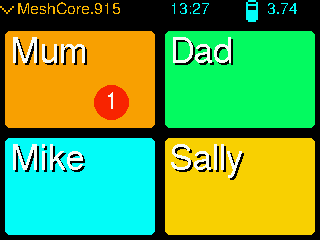
Kid Mode
When a device has been put into this mode the home screen changes to the tile system above, and only DM conversations can be had with these contacts. All other features (Settings, Discover, Public chat, etc) are shut out. This makes it super easy for a child to use, but also much safer as you can be sure they are only talking to approved contacts.
Remote Admin
In the home screen menu of your child’s device, if you go into the Security screen, there is now an extra setting:
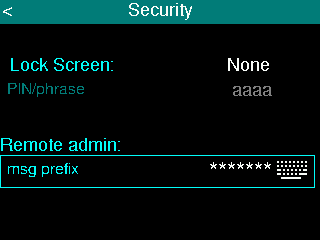
Here you can set a message prefix which this device will then listen out for (from any of the configured contacts). So, set this to something very secret that you don’t normally type. When you send a message to the administered device and it starts with this prefix, the remaining text is interpreted as an admin command. So, for example you set the admin prefix to “#mum777” you can now turn Kid Mode on/off like so:
#mum777 kid on
#mum777 kid off
You will see the administered device home screen will change immediately.
And, that’s pretty much it! Nice and simples.
NEW (v7.14+) - Tags
You can now add custom tags to your contacts, and this can be used to more precisely choose which contacts appear in the 4 cells. From the new “Contacts Tags” screen:
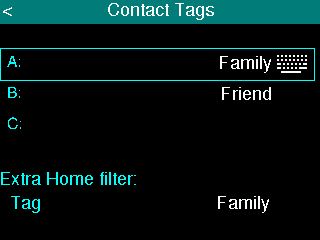
Set one tag as “Family” (typically), then at the bottom select this tag for the ‘Extra Home filter’. Then press ENTER to save to config. With this now configured, you can go to the node details screen for various contacts, then select the “Tags/Notes…” menu, which shows this screen:
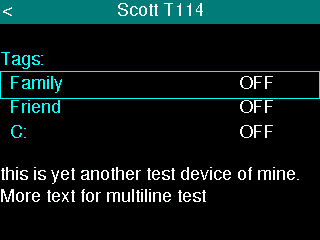
Here you can, for instance, set the “Family” tag to ON, and optionally can add some free-form notes. Then press ENTER to save. This contact will then be selected when building the 4 Kid Mode cells. (NOTE: only the first 4 with this tag will be used)
NEW (v7.14+) - Group Channel
If you configure less than 4 contacts, you can now optionally include a group channel, but it must not be Channel #1, which is assumed to be configured as the “Public” channel. So, if you enable Channel #2, and maybe name it “Family”, then a cell will be used for this group channel.
Checklist
When preparing your child’s device for Kid Mode, there are some things you should do first.
- (v7.13 or earlier) – First, only add to contacts up to four contacts (from Discover screen). Only the first four will be displayed in the home screen tiles.
- (v7.13 or earlier) – Go into the network profile menu, select Channel #1 (which is usually the Public channel), select the Disable menu, then press ENTER to save. So, you’ll want the public chat to be turned OFF.
- Check the timezone has correct setting.
- Recommended: turn Timestamps OFF in home screen menu. These would be distracting to a child.
- IMPORTANT: Under network profile, select Permissions, then set Telemetry option to Base+GPS. This is so you can get the GPS location of child’s device via the usual telemetry mechanism.
- IMPORTANT: Under network profile, select Identity then turn Auto Advert to OFF
Future Stuff
The remote admin opens up a lot of possibilities. Some more commands will, no doubt, be coming in near future, like:
- remotely turn GPS on or off (default is ON, but might want to preserve battery remotely)
- remotely wipe the storage/contents of device